Move a visit through its statuses
Mark the patient as arrived, start and end the visit, and change a status by hand when plans change.
A visit's day
- 1
The statuses
Booked, then Waiting once the patient arrives, then Current during the consultation, then Completed. A visit can be Cancelled at any point.
- 2
Mark the patient as arrived
Click Patient Arrived on the visit's row in Visits.
- 3
Start the visit
Click Start Visit; the consultation opens. A visit already running shows Resume Visit.
- 4
End the visit
In the consultation, click Save & End Visit. Completed visits show Visit Details.
When plans change
- 1
Change a status by hand
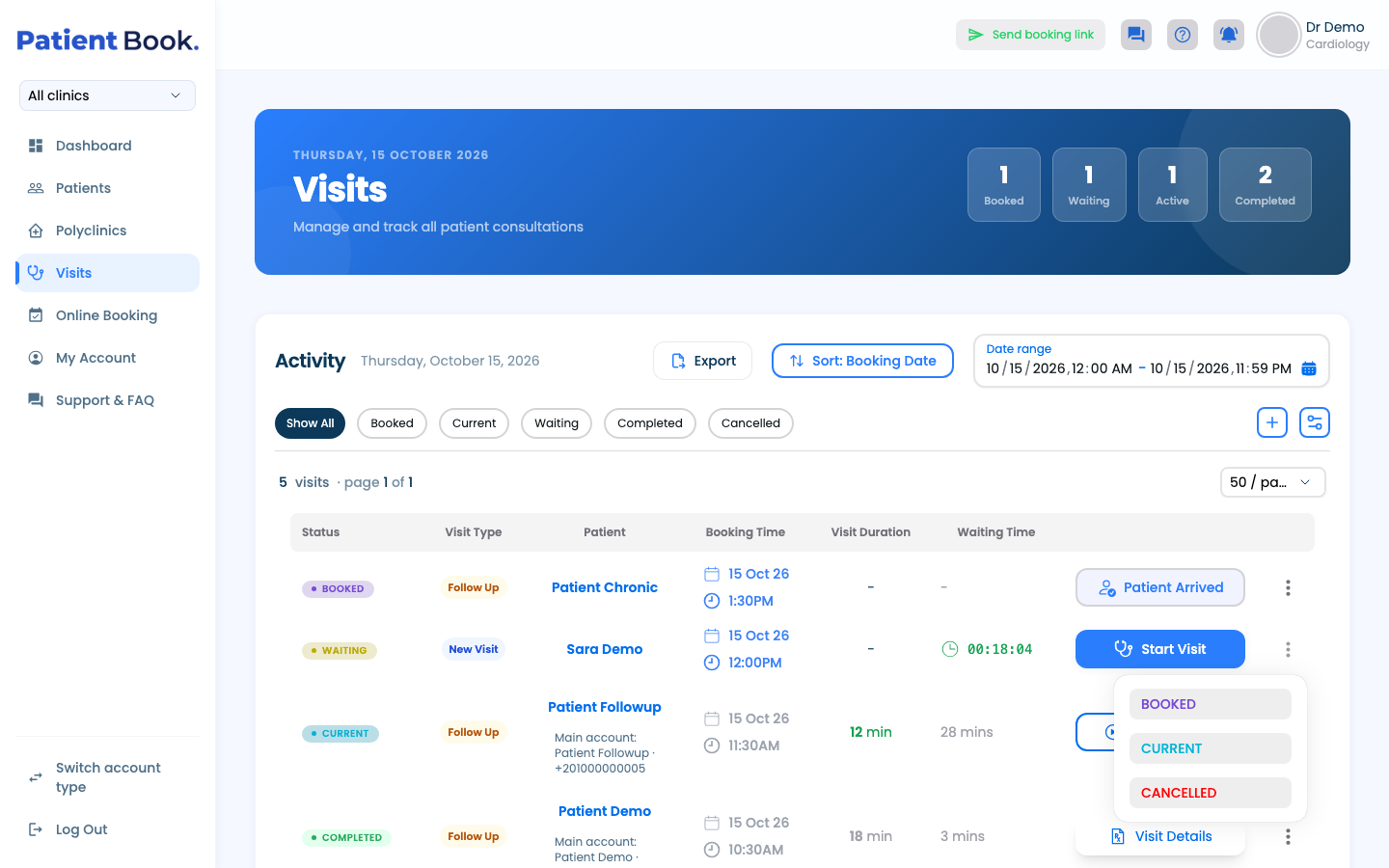
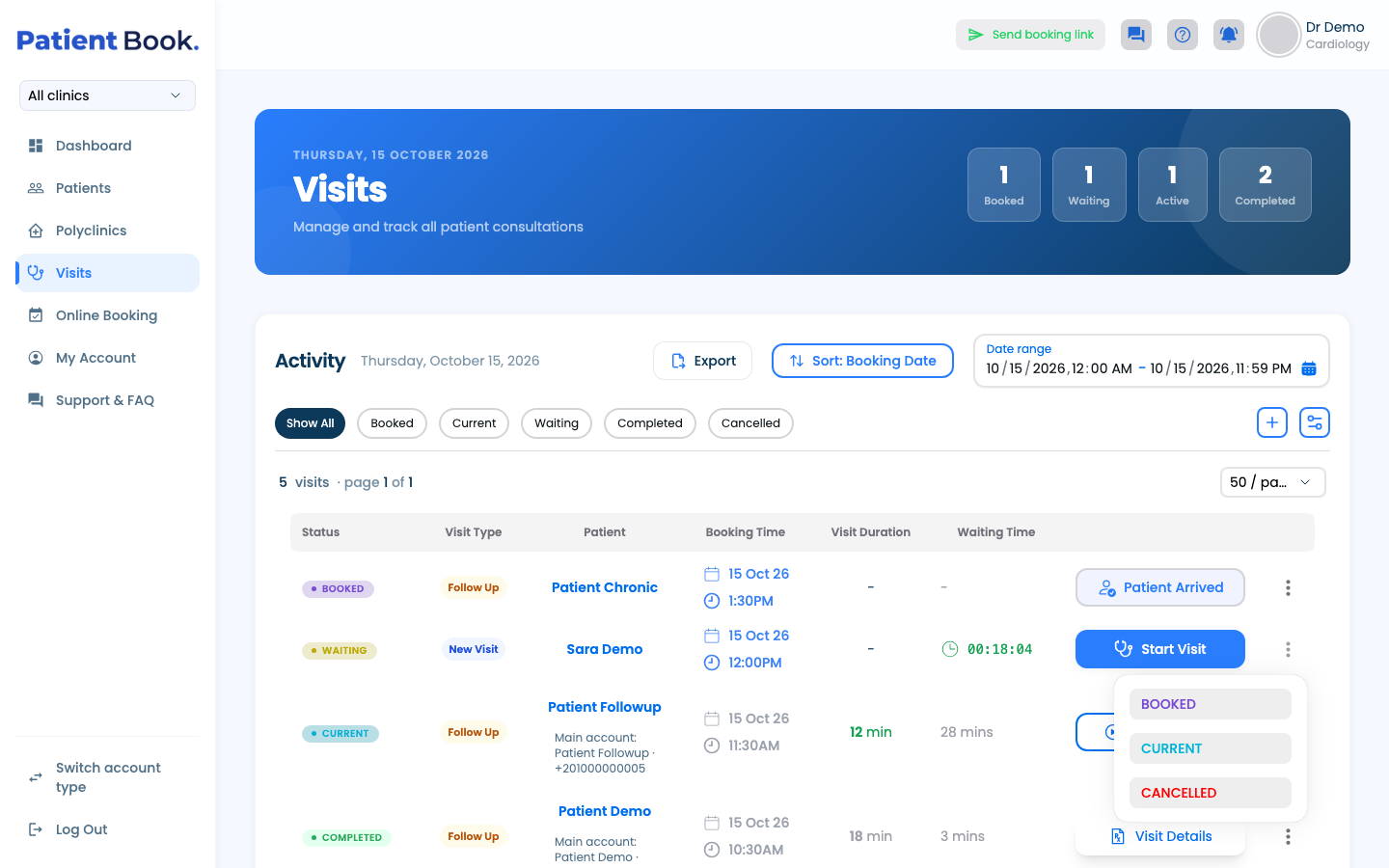
Open the ⋮ menu on the visit's row. It only offers the moves allowed from the current status: a waiting visit, for example, can go back to Booked, on to Current, or be Cancelled. Moving a visit back resets its times, and you're asked to confirm.
- 2
Visits left waiting
A visit still in Waiting 6 hours after the patient arrived is cancelled automatically overnight, so yesterday's queue doesn't carry over.
Questions and answers
Why was a waiting visit cancelled?
A visit still in Waiting 6 hours after the patient arrived is cancelled automatically overnight.
I moved a visit by mistake. Can I move it back?
Yes, from the ⋮ menu on its row, when the move is allowed from its current status: a waiting visit can go back to Booked, for example. Moving it back resets its times.
On the web vs in the app
| What | Web portal | App |
|---|---|---|
| Moving a visit along | A button on each row of the visits list | One main button inside the visit |
| Who can complete a visit | Doctors, by ending the consultation | Doctors and assistants |
What's next
Updated: 18 October 2026
Still stuck?
Our team answers on WhatsApp and email.