Sign in and choose your account
Sign in with your phone number and a one-time code, pick the account you want to use, and switch accounts or language later.
Sign in
- 1
Open the sign-in screen
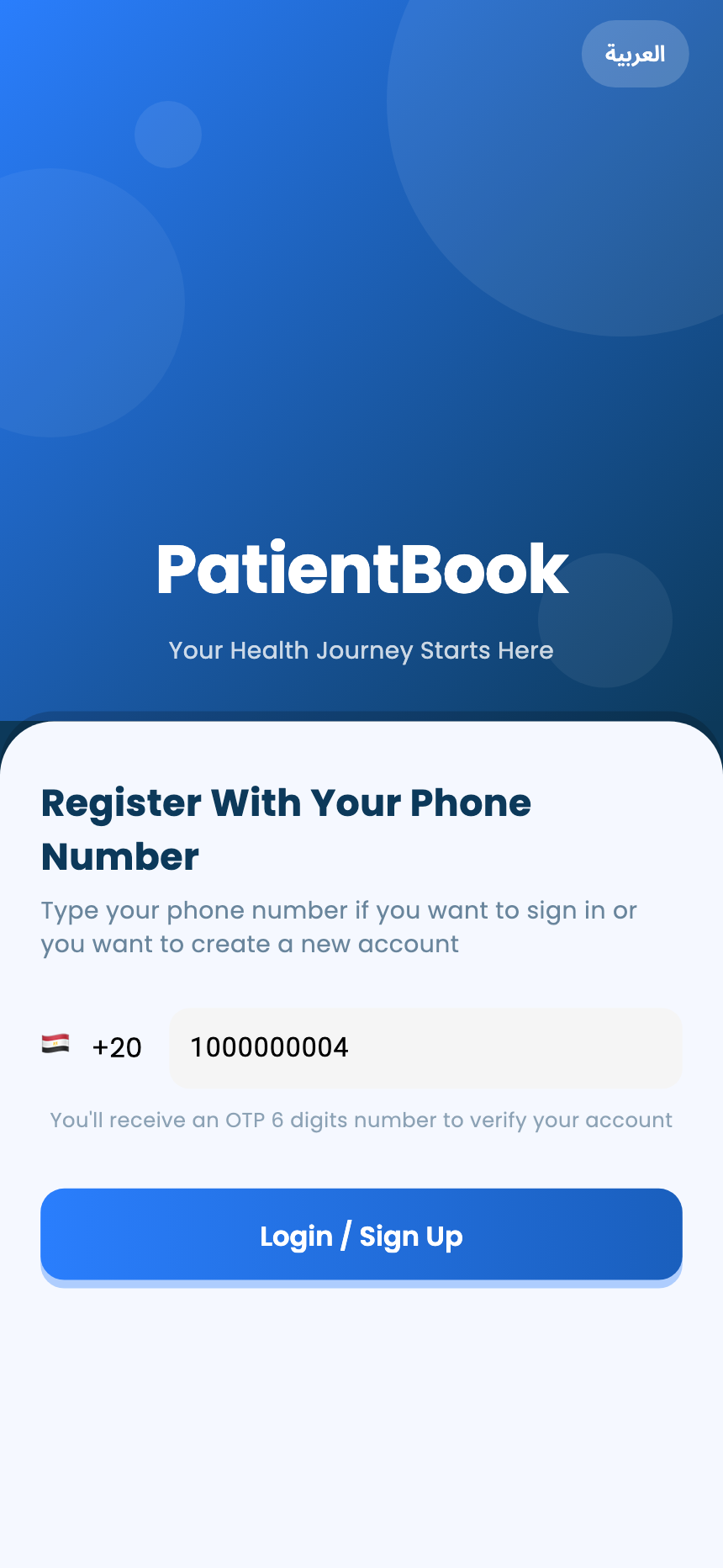
Open the PatientBook app. The first screen asks for your phone number; the button at the top switches between English and Arabic.
- 2
Enter your phone number
Type your mobile number. The country starts as Egypt; tap the flag to pick another.
Tap Login / Sign Up.
- 3
Enter the code
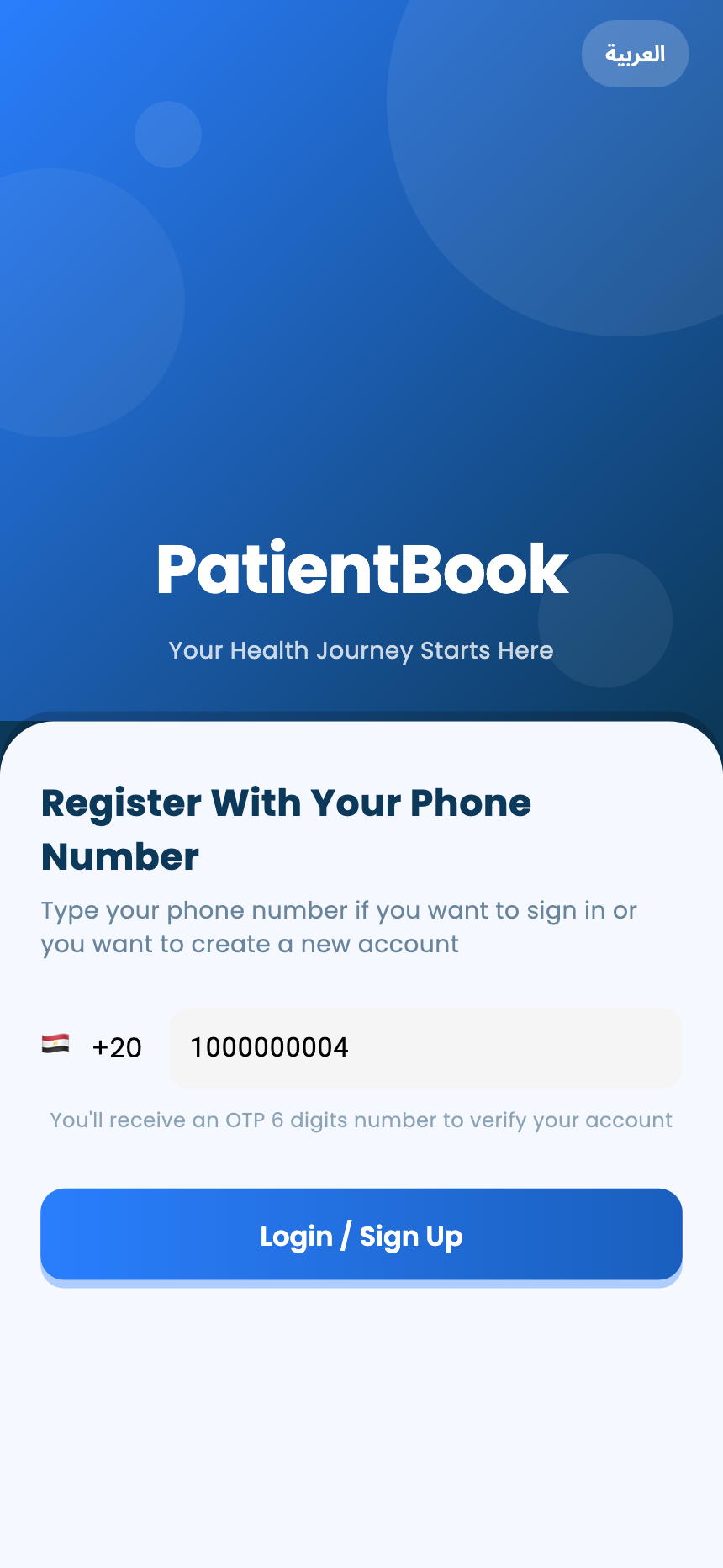
We send a 6-digit code to your phone. Enter it to sign in. A number we haven't seen before goes on to create a new account.
Choose your account
- 1
Pick an account type
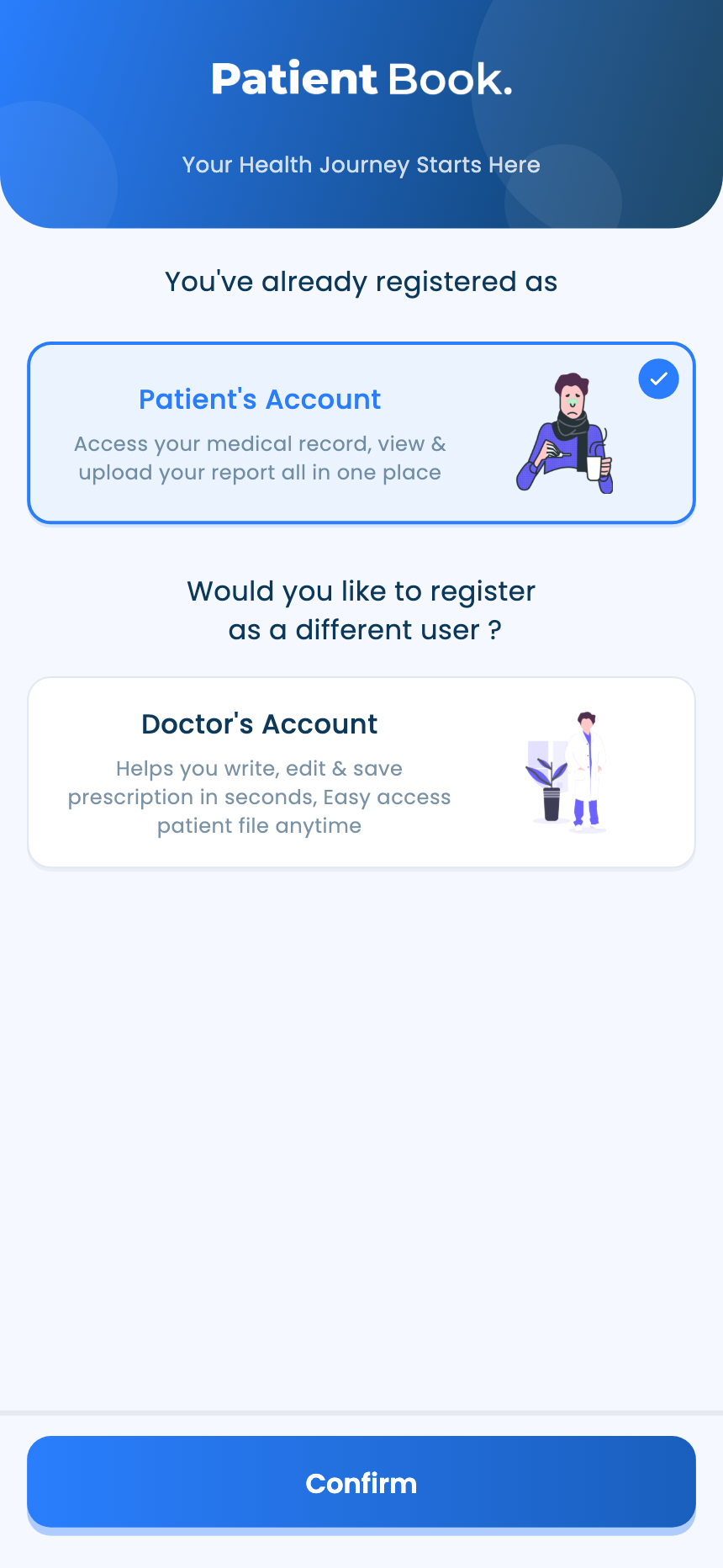
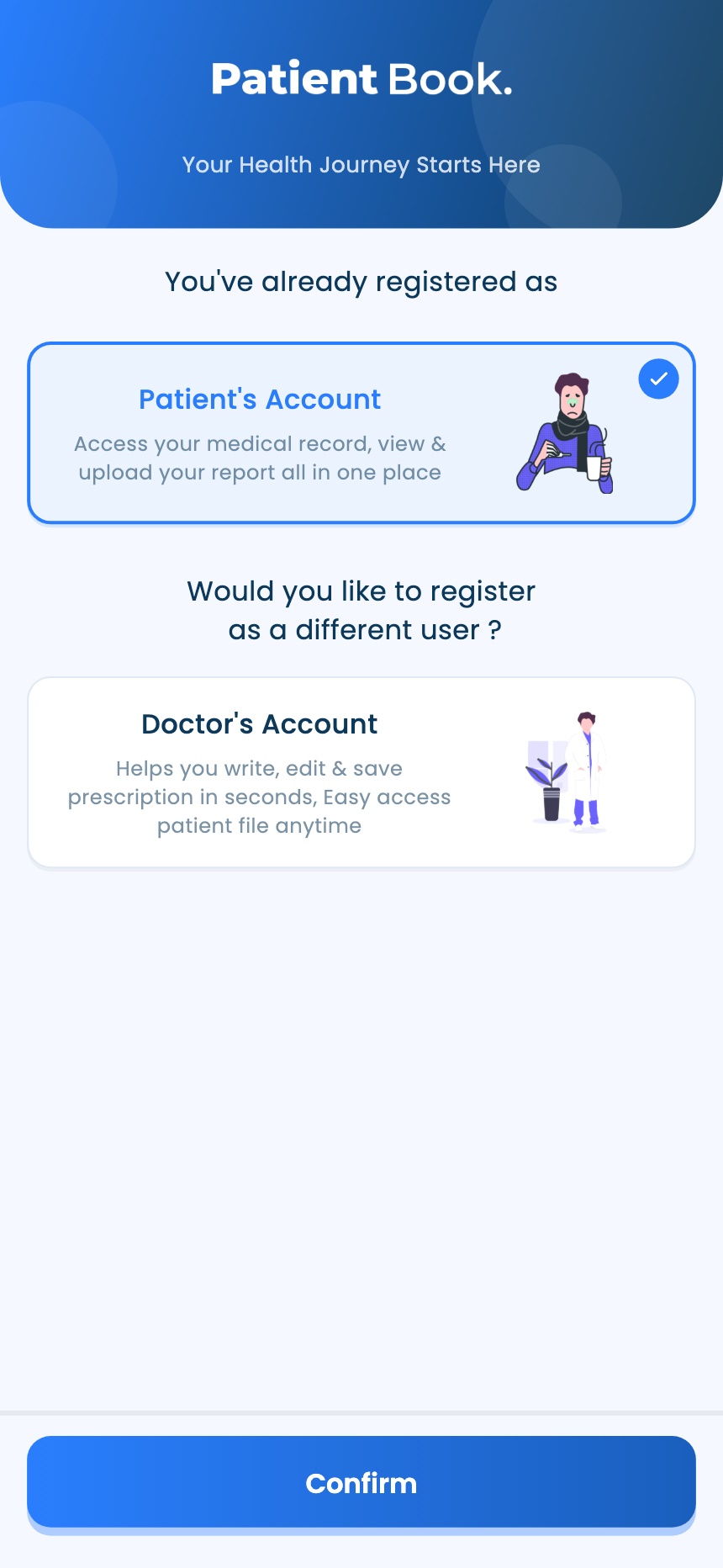
If your number has more than one account, choose Patient's Account, Doctor's Account or Assistant Account, then Confirm. The app opens the same one next time.
- 2
Doctors: pick a clinic
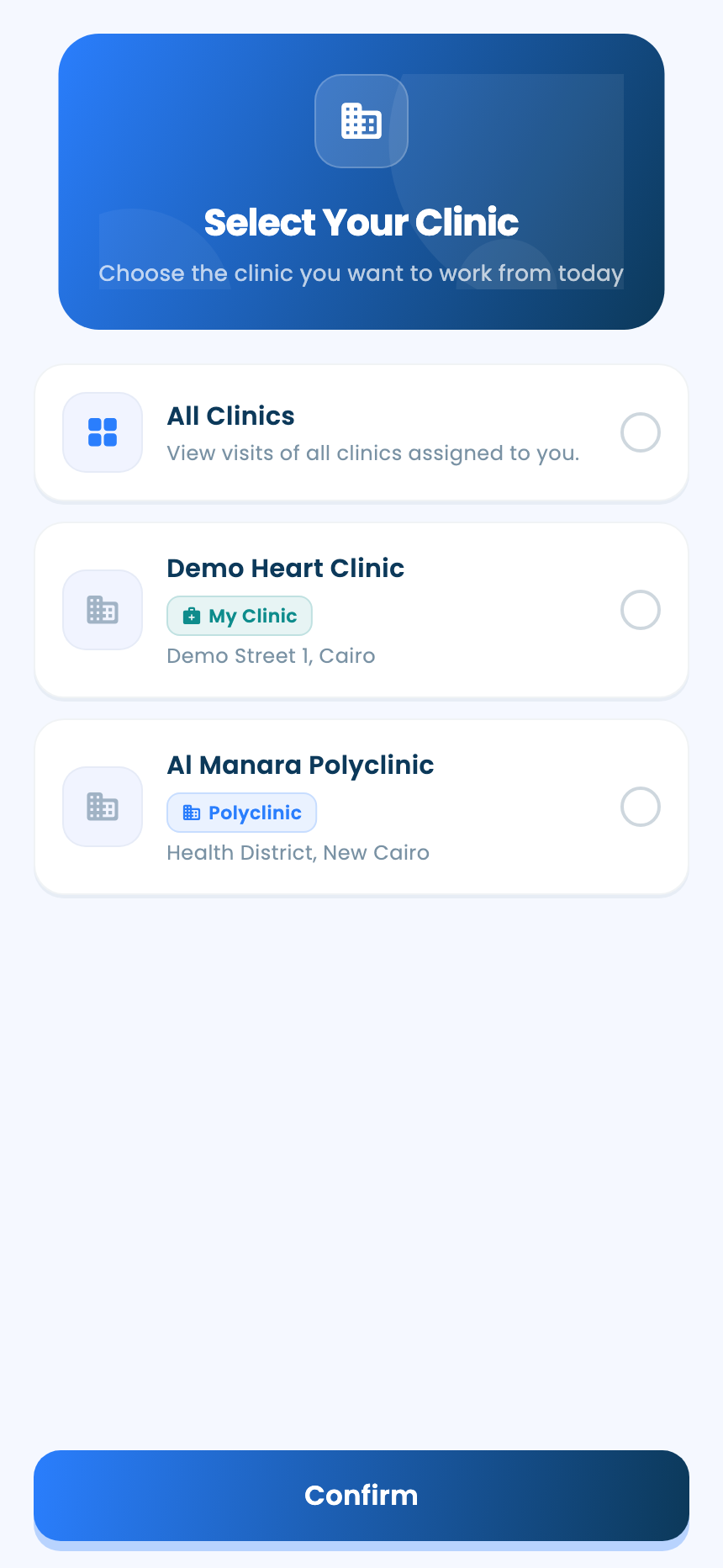
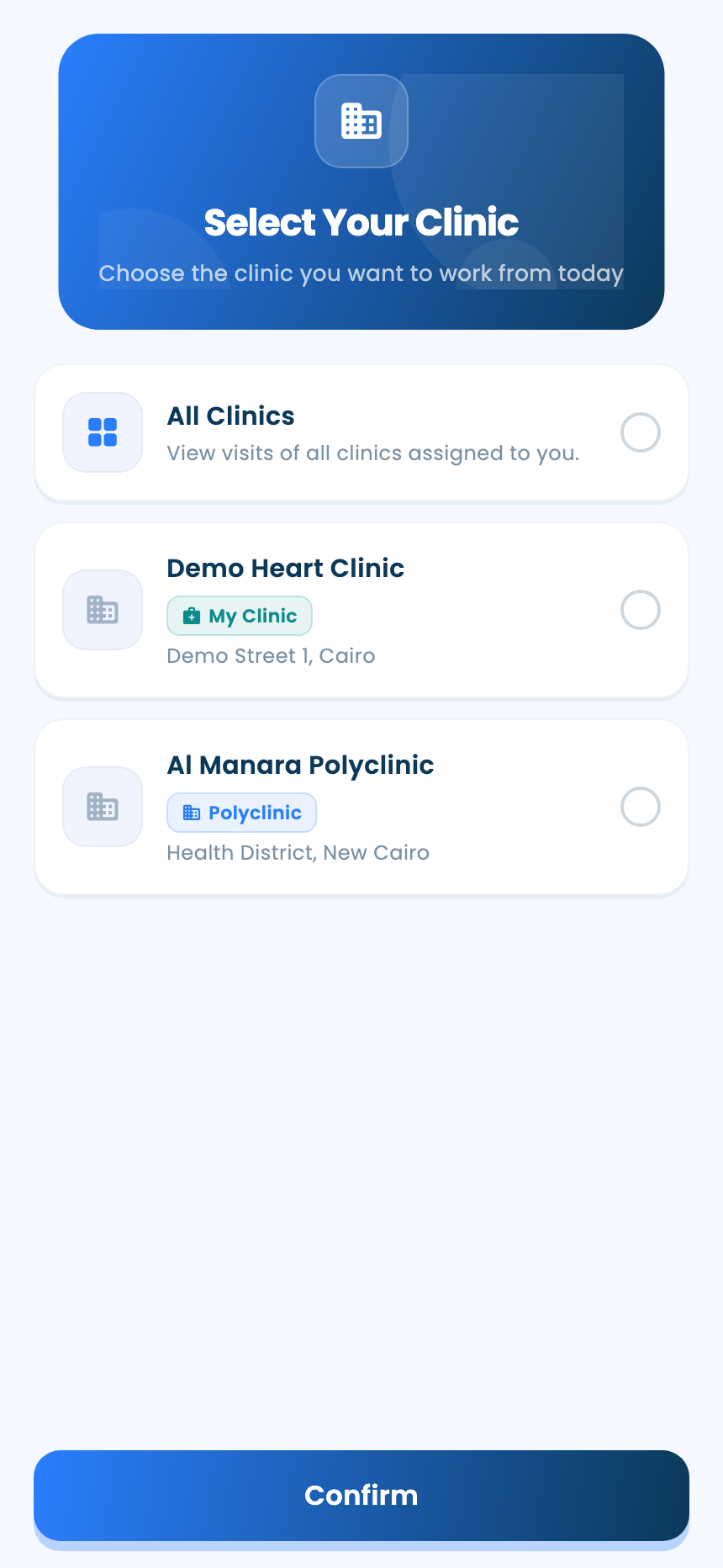
Select Your Clinic lists your clinics. Choose one, or All Clinics to see everything, then confirm. Assistants choose the doctor and clinic they're working for (see the assistant guide).
Change it later
- 1
Switch account type
Open My Account and tap Switch account type.
- 2
Change the language
Patients and assistants: open My Account, tap Language and choose English or Arabic. The doctor's side of the app is in English.
Questions and answers
Can one phone number have more than one account?
Yes. After the code, choose Patient's Account, Doctor's Account or Assistant Account. To change it later, open My Account and tap Switch account type.
On the web vs in the app
| What | Web portal | App |
|---|---|---|
| Who signs in | Doctors, and polyclinic, lab and pharmacy staff | Doctors, assistants and patients |
| Choosing the account | On the first screen, before the phone number | After the code, when your number has more than one account |
| Language | English | English or Arabic for patients and assistants; English for doctors |
What's next
Updated: 18 October 2026
Still stuck?
Our team answers on WhatsApp and email.