Run a consultation
Start the visit, write your notes, add diagnoses, medicines and requested tests, and end the visit.
Open the consultation
- 1
Start the visit
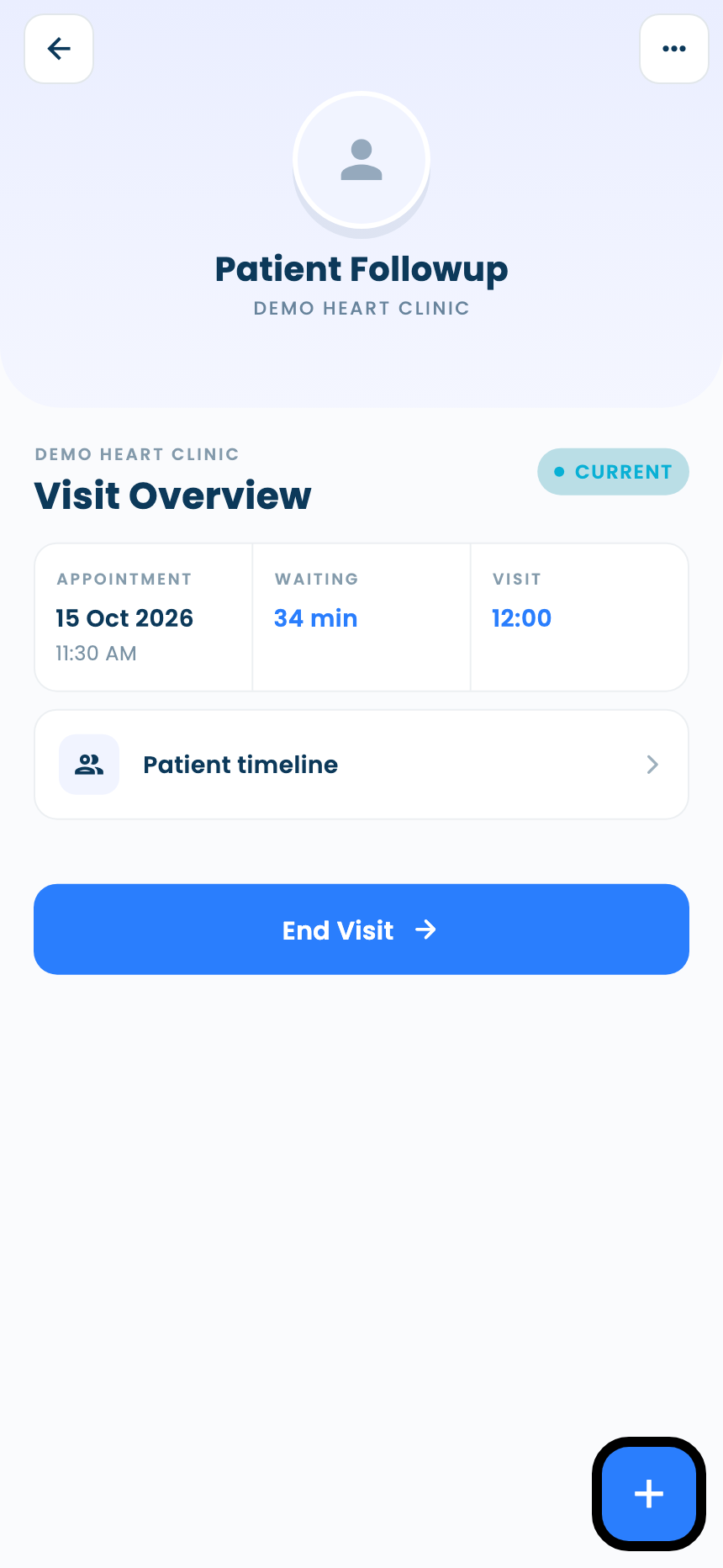
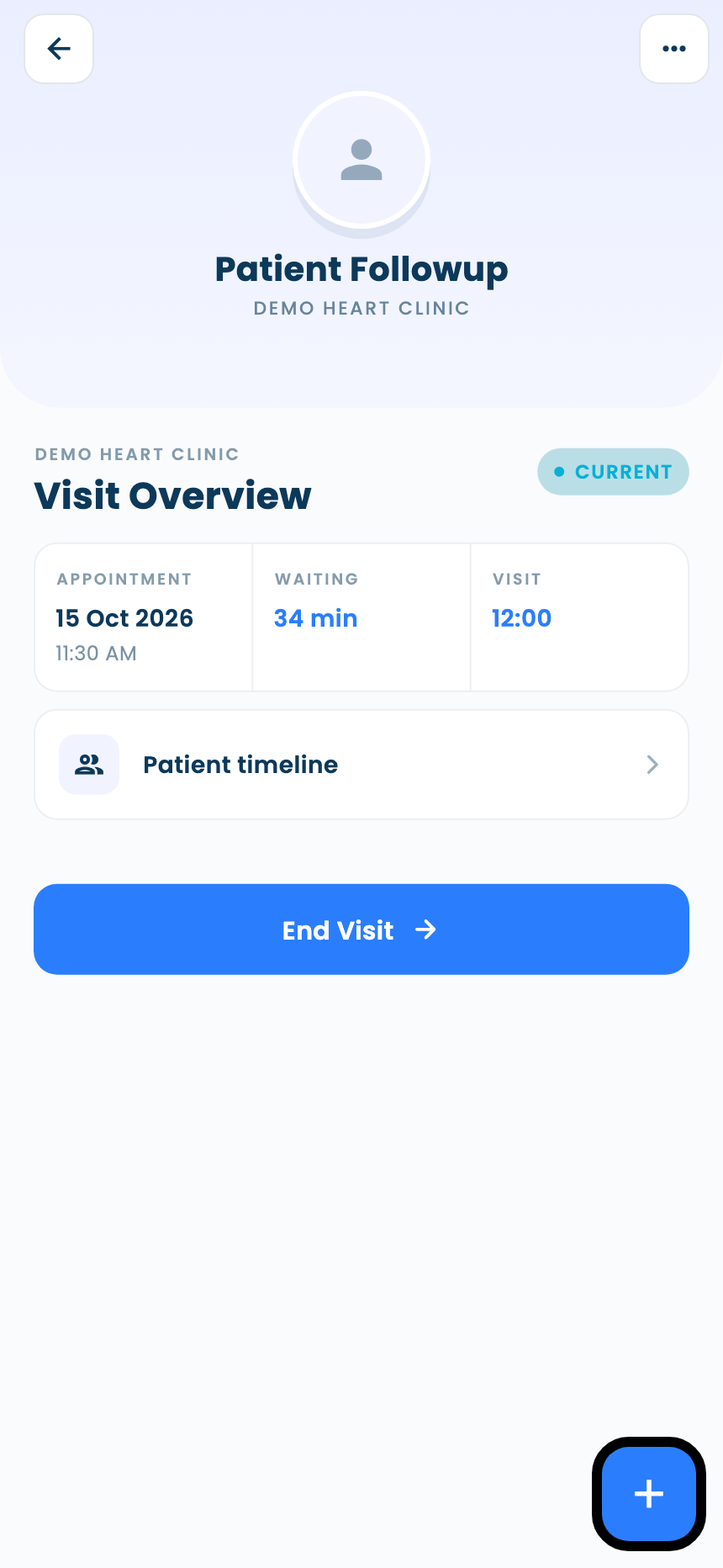
Open the visit and tap Visit Started. The visit screen becomes the consultation, with its timers and the patient's timeline.
Write the consultation
- 1
Write your notes
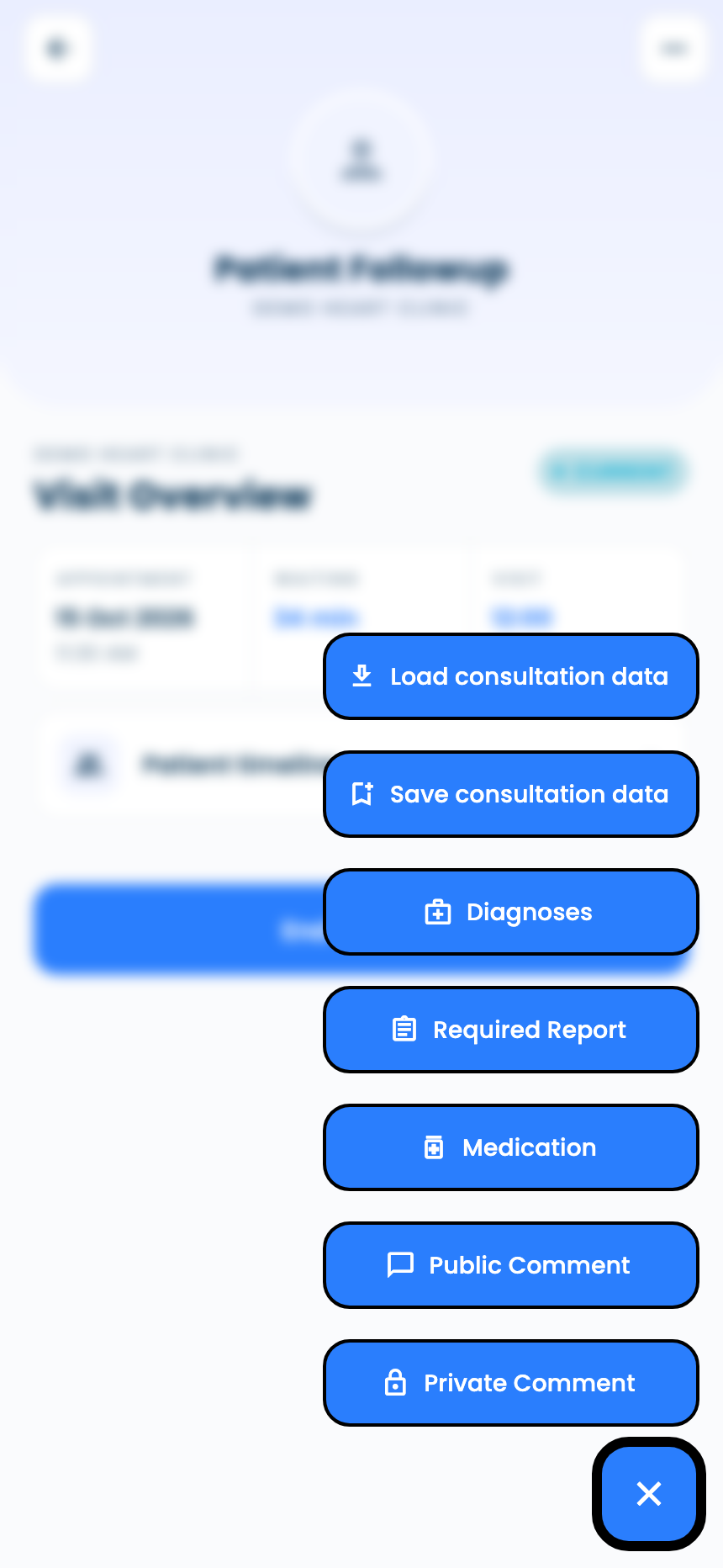
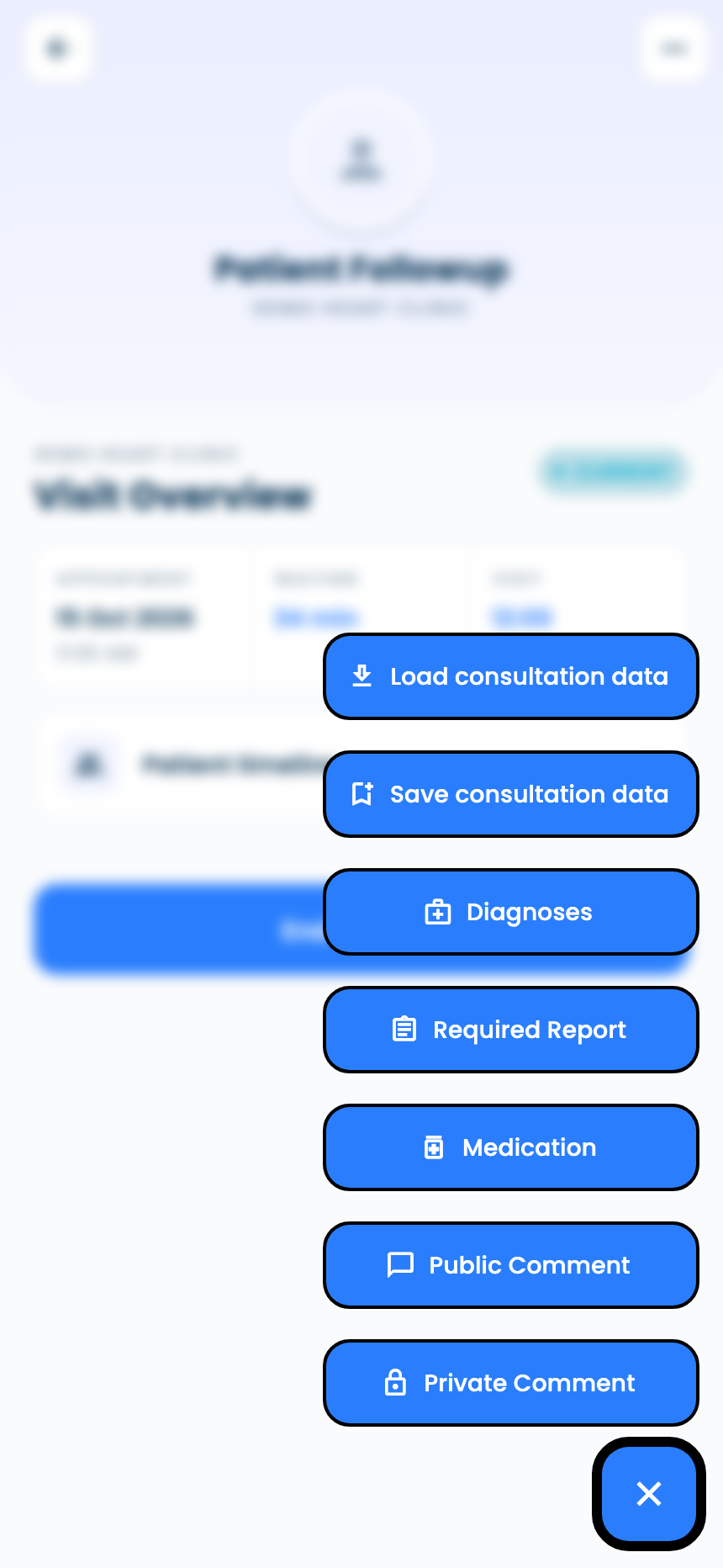
Tap + and choose Private Comment. Chips add History, Diagnosis, Recommendation and Investigation sections.
- 2
Add diagnoses, medicine and tests
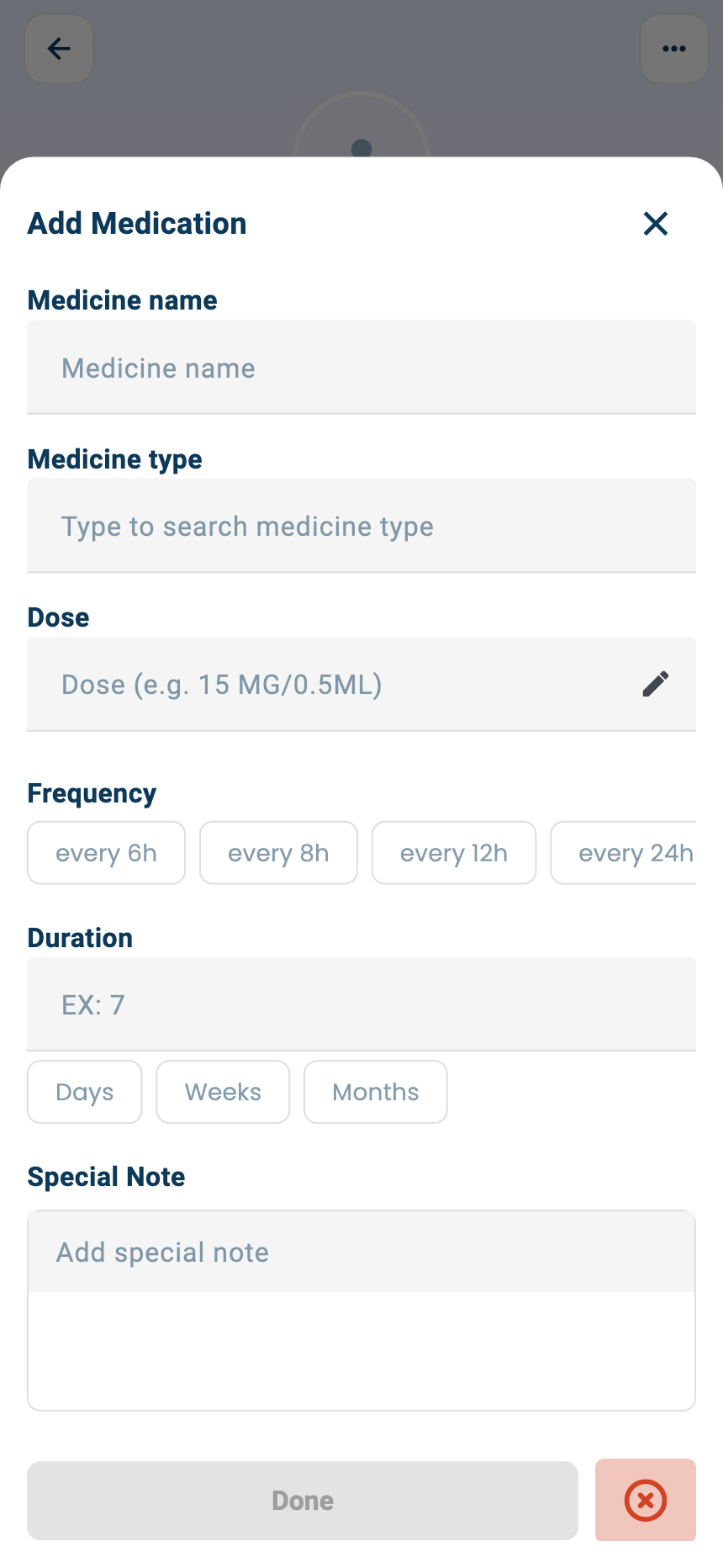
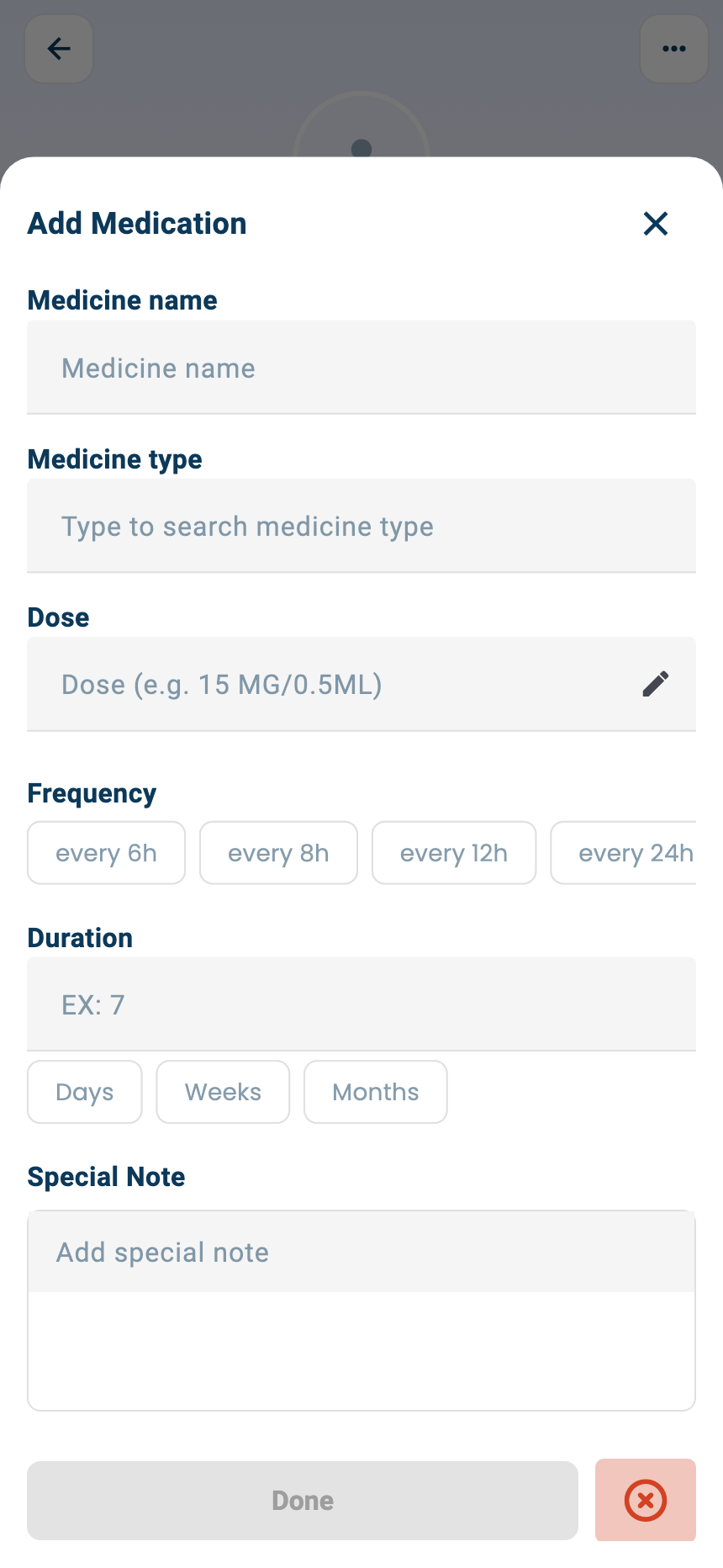
From the + menu: Diagnoses, Medication, Required Report and Public Comment. In Add Medication, set the medicine, dose, how often and for how long, then Done.
- 3
Reuse a consultation
Save consultation data keeps this consultation's diagnoses, medicines and tests under a name; Load consultation data fills them into another visit.
Finish
- 1
End the visit
Tap End Visit.
- 2
The patient's summary
When the visit ends, a patient with a phone number gets a WhatsApp message linking to the visit summary: diagnoses, medicines and requested tests.
Questions and answers
Does the patient see my private comment?
No, only you see Private Comment. Public Comment is the note the patient sees.
Why didn't the patient get the visit summary?
The WhatsApp message with the summary is sent when the visit ends, to patients who have a phone number.
Why can't I add medicines?
E-prescriptions depend on your plan.
On the web vs in the app
| What | Web portal | App |
|---|---|---|
| Private comment | Required to end the visit | Optional |
| Where the actions are | Select Action buttons on the page | The + menu |
| Printing and templates | Print the visit; import templates into notes | Not available |
What's next
Updated: 18 October 2026
Still stuck?
Our team answers on WhatsApp and email.