Set up online booking
Set your working hours and visit lengths, block time off, and share your booking link so patients can book themselves.
Your hours
- 1
Set your weekly hours
On the Booking tab, tap the settings icon and choose Weekly Schedule.
- 2
Set visit lengths
Set a default length, and a length and break for each visit type.
Open Slot Durations.
- 3
Hours for a set period
For a period with different hours, such as Ramadan, add a date-range schedule. It replaces the weekly hours between its dates.
Open Date-Range Schedules. The days are filled from your weekly hours when you save.
- 4
Block time off
Pick a date, the whole day or certain hours, and an optional reason. Blocking cancels the visits booked in that time and tells those patients.
Open Time Blocking.
Your bookings
- 1
See the schedule
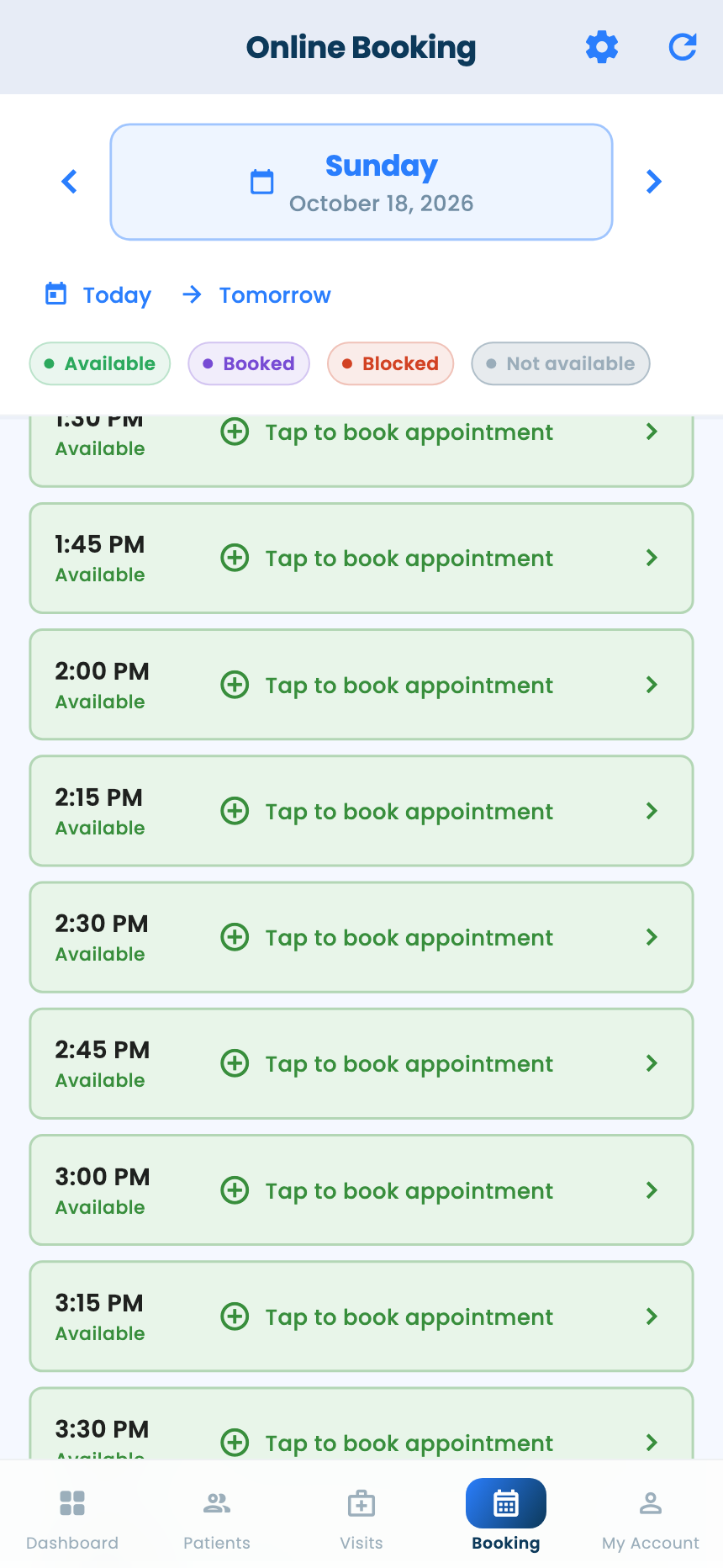
The Booking tab shows one day; switch with Today and Tomorrow or the arrows. Tap a free time to book it, or a booked one to open the visit.
Your booking link
- Turn on your booking link · Only on the web portal
- 1
Send it to a patient
Patients open the link and book without signing in (see “Book an appointment”).
Use the link icon at the top of the dashboard to send it on WhatsApp.
Questions and answers
What happens to booked visits when I block time?
Blocking cancels the visits booked in that time and tells those patients.
How do I set different hours for Ramadan?
Add a date-range schedule for those dates. It replaces your weekly hours between them.
On the web vs in the app
| What | Web portal | App |
|---|---|---|
| Booking link | Turn on, name and set it up; send it | Send it only |
| Schedule view | A week; drag to move visits | One day at a time |
| Date-range schedules | Start from your weekly hours, edit each day | Filled from your weekly hours |
What's next
Updated: 18 October 2026
Still stuck?
Our team answers on WhatsApp and email.