Run the doctor's day as an assistant
Pick the doctor and clinic you're working for, then book visits, add patients and move the queue along from the app.
Start your day
- 1
Choose the doctor and clinic
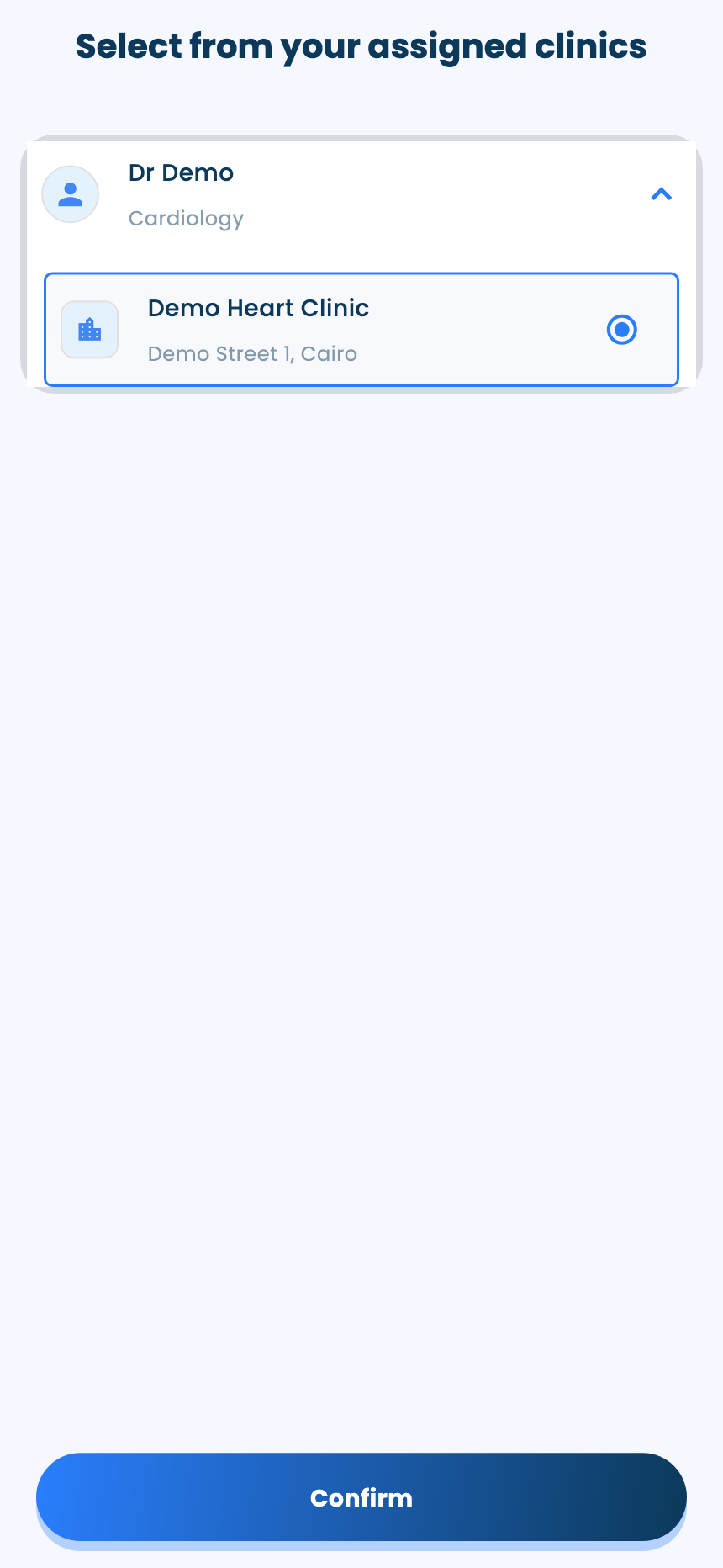
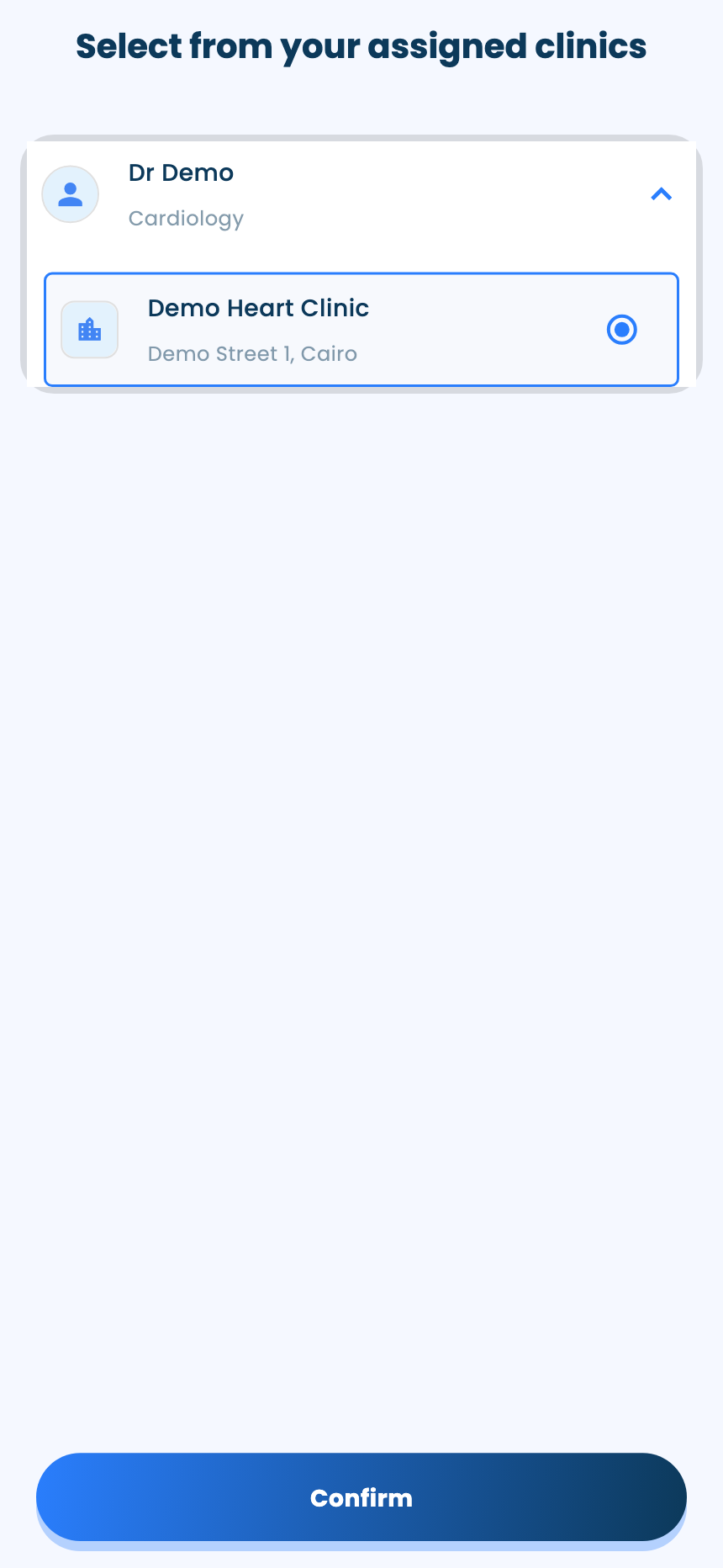
After signing in with Assistant Account, Select from your assigned clinics lists the doctors you work for. Open a doctor, pick the clinic, and tap Confirm.
- 2
Your home screen
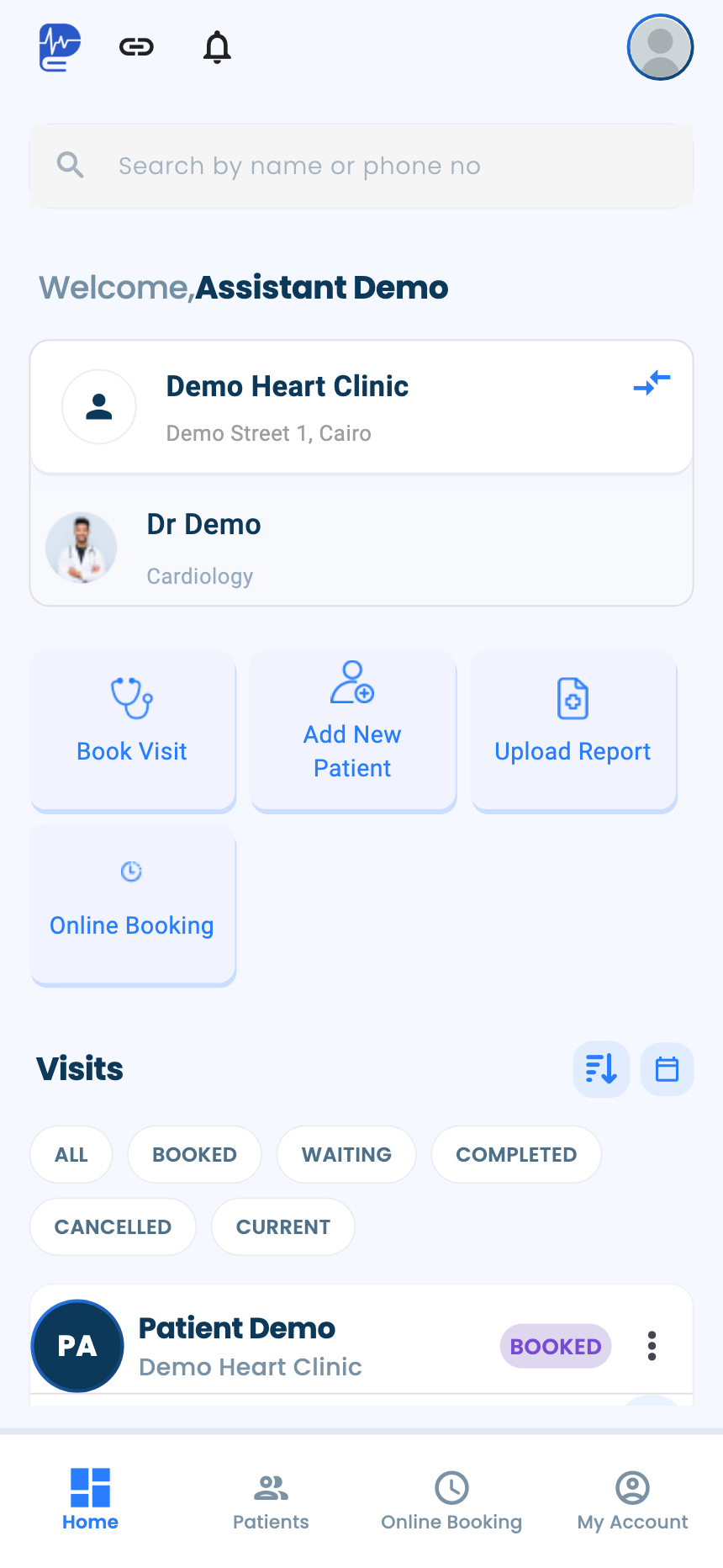
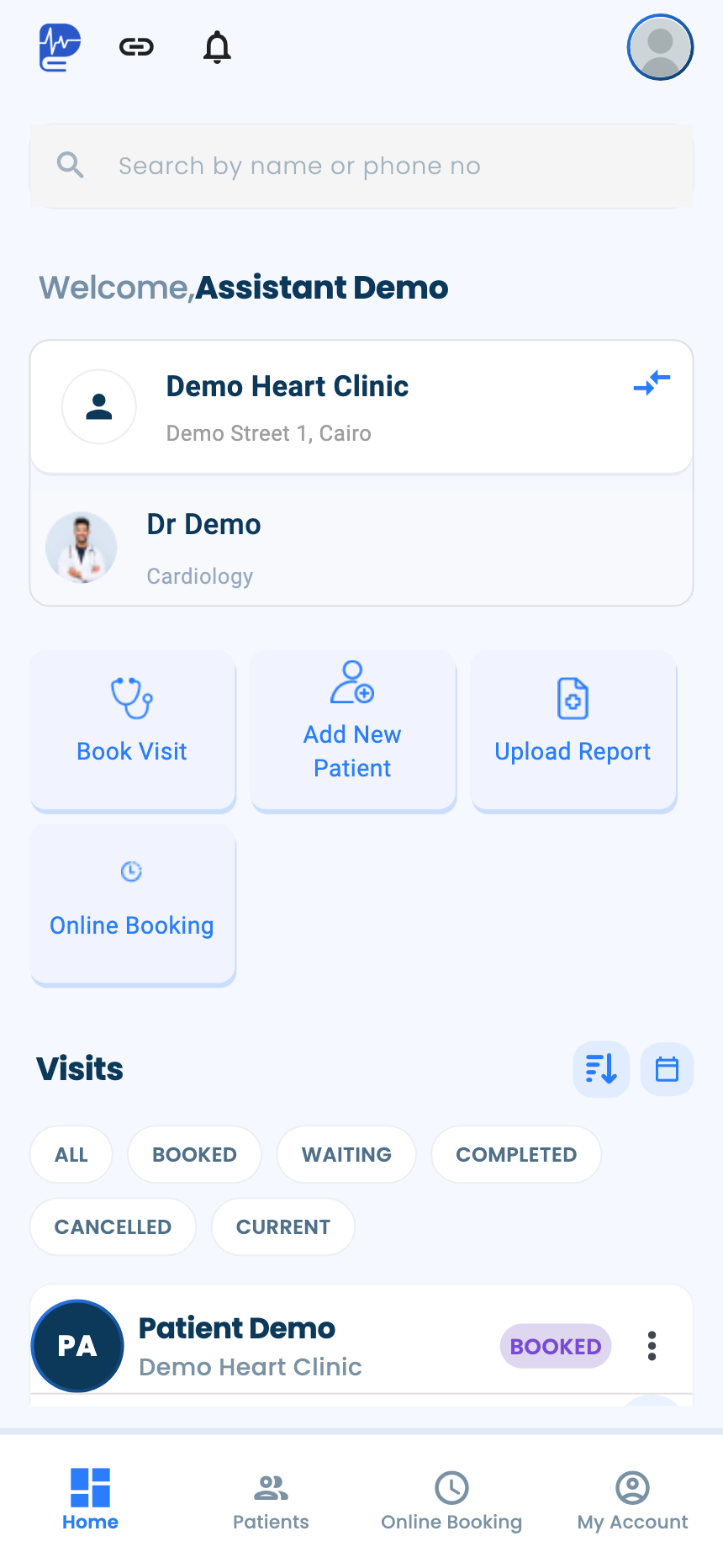
Home shows the doctor and clinic you picked, the shortcuts Book Visit, Add New Patient, Upload Report and Online Booking, and the visits with their statuses. Search patients by name or phone at the top. The switch icon on the clinic card changes doctor or clinic.
Run the queue
- 1
Move a visit along
Open a visit and use its button as the patient goes through: Patient Arrived, then Visit Started, then Visit Completed. The doctor's comments, diagnoses and medicines show here read-only.

- 3
Patients and the schedule
Adding patients and family members works as in “Add a patient and their family”, and the doctor's schedule as in “Set up online booking”.

Questions and answers
Why don't I see any clinic after signing in?
A doctor has to add you as their assistant and assign you a clinic first.
How do I work for another doctor or clinic?
On Home, tap the switch icon on the clinic card.
Can I write the consultation?
No. The doctor's comments, diagnoses and medicines show in the visit read-only.
What's next
- Add a patient and their familyFind a patient by phone number, create a file if they're new, and link their family members.
- Book a visitBook a patient into a free time at one of your clinics, and find your visits in the visits list.
- Move a visit through its statusesMark the patient as arrived, start and end the visit, and change a status by hand when plans change.
Updated: 18 October 2026
Still stuck?
Our team answers on WhatsApp and email.